Joining takes a minute
Your owner sends you an invite link — tap it and sign up. Standing next to them? They can read you a code instead.
7:00 — clock in at the site
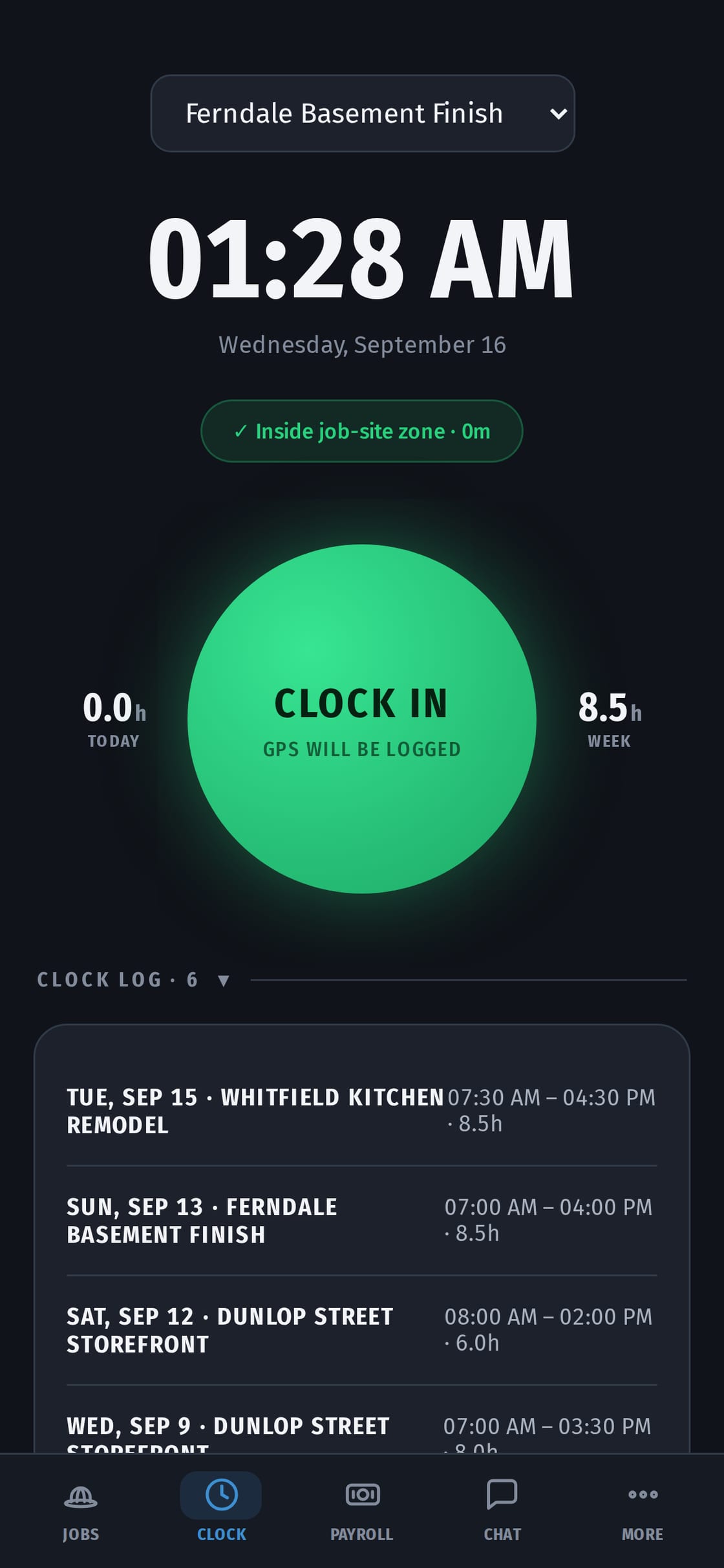
Open the app and tap Clock in. It picks the job you're standing at and shows "Inside the job-site zone". No signal in the basement? The clock-in saves on your phone and goes through when you're back online.
During the day — tasks, photos, chat
See your tasks for the day and tick them off. Take job photos so the owner sees the progress without driving out. Talk to the crew in the chat, or send a voice message when your hands are full.
Your hours and pay, always in front of you
Every shift is in your clock log. You see your hours for the day and the week, what you've earned, and when the owner marks a payment as paid. No more arguing about who worked how long.
Your language
Use CrewHub in English, Ukrainian, Spanish, French or Russian. Everyone on the same job, each in their own language.
About your location
Location is used only while your shift is open and the app is on screen — never in the background, never after work. You can clock in without it, too.
Getting started
- Get the invite. The owner sends you a link, or reads you the company code.
- Get the app. On an iPhone: CrewHub in the App Store. On any other phone: open crew-hub.ca in the browser.
- Sign up as a crew member. Choose "Crew member · I work for a contractor", then your name, email and a password.
- Pick your language.
- Clock in at your first job.
When the day doesn't go to plan
- On a break? Tap Break, and the time isn't counted.
- Forgot to clock out? Add the time you left. The owner confirms it, and your hours are right again.
- Something to tell the owner about the day? Add a note to the day.
Your calendar
Every day you worked is on your calendar. Blue days are worked but not paid yet. Green days are paid. Need a day off? Send a time-off request from the app, and the owner approves it.
Your week
The weekly schedule shows which job you're on each day, so you don't have to text the owner to ask.
Photos and chat
- Job photos go into albums, with the date and time. You can see them with no signal.
- There's a chat for each job and direct messages with photos and voice messages, instead of three WhatsApp groups.
What the owner sees about you — and what not
While your shift is open, the owner sees one of three things: on site, nearby, or left. After you clock out, nothing. There's no tracking at home, at lunch elsewhere, or on weekends.